This month's release helps multi-venue organizations find what they need faster, gives you finer control over when and how your spaces can be booked, and adds new protections for clients using shared computers. Here's what's new:
- Additional Ticketing Filters: narrow every ticketing screen by venue, space, category, tag, or organizer.
- Flexible Space Availability: set multiple booking windows per day and control who can book each one.
- Improved Block Out Dates View: review every closure for a space in one clear table.
- Space Views as Your Default Public View: space views are now supported as the default public views in general settings.
- New Booking Email Templates: tailor internal confirmations and the order summary PDF.
- Session Timeout: set how long inactive users stay signed in, protecting client accounts on shared and public devices.
- Custom Filters in Import Feeds: auto-assign custom filters to events imported from other Time.ly calendars.
1. Ticketing Filters: Find Orders and Attendees by Venue, Space, and Category
If you manage several venues under one account, you can now narrow every ticketing screen to a single venue, space, or category. This is especially useful for public libraries, museums networks, and recreation departments that collect registrations or sell tickets across many locations.
- Within the Ticketing/RSVP menu, you can filter Orders, Tickets, RSVP, Waiting List, and Attendance by Venue, Space, Categories, Tags, and Organizers.
- These are the same filters you already use on your Events list, so there's nothing new to learn.
- When you pick a venue, the Space filter automatically shows only the spaces connected to that venue.

Want a refresher on setting up venues, categories, and tags in Time.ly? See How to Organize Your Calendar with Filters.
2. Space Availability: Multiple Time Slots and Audience Controls
Universities, municipalities, and other multi-venue organizations manage bookable spaces across many locations, and a few of them run on a simple nine-to-five schedule. Now you can set multiple availability windows for a space within a single day, and control which user types can book each window.

For example, you can keep mornings for your internal team, open afternoons to the public, and leave a gap in between for setup or cleaning.
- Add as many time slots as you need to each day of the week, such as a morning slot and an afternoon slot with a break in between.
- Open each slot to All users, Internal only, or External only, so you decide who sees and books each window.
- Give every day its own schedule, so your Saturdays can look completely different from your weekdays.
- Spaces you've already set up keep their current availability. No action is needed.
3. Improved View of Space Block Out Dates
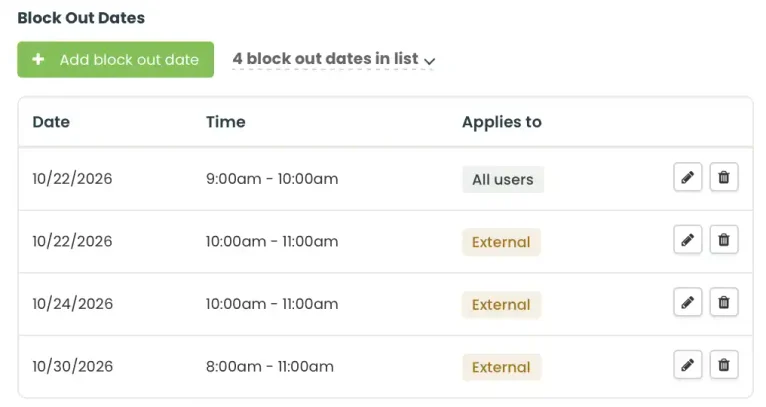
You can now review your space Block Out Dates in a clear table, so you can see every closure at a glance.
- Review every block out rule for a space in one structured table.
- Your existing block out rules work exactly as before. Only the view has changed, so there's nothing to reconfigure.
4. Space View as Your Default Public View
If your Time.ly account mainly showcases bookable rooms and venues, you can now make a Space View the default for your hosted calendar page instead of your events calendar. Visitors who open your Time.ly URL or custom domain see your spaces first.
- Choose your default. Set Space Gallery, Space Schedule, or Space Daily View as the landing page for your hosted calendar.
- Optimize by device. Set one default for desktop visitors and a different one for mobile.
- Keep full navigation. Visitors can still switch between space views and event views at any time.
- No impact on embeds. Calendars embedded on your website keep the view you selected in the embed code. The default applies only when your hosted URL or custom subdomain is accessed directly.
- Available with Venue Management. This option requires the Venue Management Module. Your current setup stays the same until an admin selects a new default.
To set it up: Go to Settings > Design > Views > Default View and choose your preferred space view for desktop and mobile.

5. New Room Booking Email Templates: Tailored Confirmations for Your Team and Customers
Your team and your customers need different details when a room booking is confirmed. Two new email templates let you shape each message separately. On top of that, a customizable order summary PDF now goes out with every confirmation, so everyone has the details they need without a follow-up email.
- Booking Confirmation (Internal) notifies your team when a payment is completed or a booking is approved. You can word it differently from the confirmation your customer receives.
- Booking Order Summary lets you design the PDF attached to booking confirmations, so it matches your branding and includes the information you choose.
Both templates support dynamic fields, which are placeholders that fill in each booking's details automatically. Time.ly platform automatically attaches the order PDF to both the customer confirmation and the internal confirmation.
New to Bookings? Read the September 2026 Product Update for an overview.
6. Configurable Session Timeouts
You can now choose how long inactive users stay signed in to your public interface before Time.ly signs them out automatically.
- Set how long users stay signed in to your public view.
- Choose a shorter time for calendars and space views used on kiosks and shared devices, where people often forget to sign out.
- Users are signed out automatically, without any extra steps on their part.
- To set it up go to Settings > General > Security, and enable “Automatically sign out external users” then enter how many minutes the session will be active before it signs out automatically.

7. Custom Filters in Import Feeds: Keep Synced Calendars Organized
If your departments feed a central calendar, or regional calendars roll up into one main view, your Custom Filters now travel with your events. That means events arrive already organized, and visitors can filter them the same way on every calendar. This new feature builds on the translation sync functionality introduced in the August 2026 Product Update.
- Your Custom Filter values now sync when one Time.ly calendar subscribes to another through an import feed (a live connection that copies events from one calendar to another).
- Each sync updates those values automatically, the same way categories, tags, and translations already sync.
- If you change a Custom Filter value on the receiving calendar, your change stays in place. Future syncs won't overwrite it.
- Events that arrive without Custom Filter values behave exactly as they do today.
- This applies to feeds between Time.ly calendars only, not to feeds from other calendar apps.
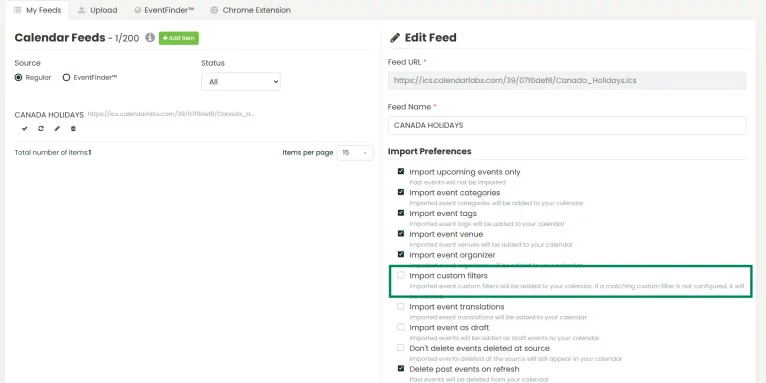
For setup details, see How to Import Events Using an ICS / iCal Feed URL.
What This Means for Your Team
Whether you run several venues, rent out spaces, or manage a network of connected event calendars, this update removes everyday friction. Ticketing teams find the right records faster. Venue managers get schedules that match how their spaces are really used. On top of that, shared devices stay safer, and synced calendars stay organized without manual cleanup.
Have questions about setting any of this up? Contact Time.ly Support or visit our Help Center for step-by-step guides. Not yet a Time.ly customer and curious how these features could fit your organization? Book a demo to see them in action.